I Switched to the Logitech Mx Master 4 and Here is What Happened
Category: Laptops
Introduction
The writer recently replaced a daily driver mouse with the Logitech Mx Master 4 to evaluate whether it genuinely improves everyday laptop workflows. This article documents the experience in a practical, third-person editorial voice—focusing on how the device behaves in real-world scenarios that matter to typical laptop users: productivity, content creation, commuting, and multi-device setups. The goal is to give an evidence-based, readable account for buyers who are deciding whether a premium, full-size mouse is a smart addition to their laptop kit.
First impressions and intent
Out of the box, the Mx Master 4 presents itself as a continuation of Logitech's premium MX line: a sculpted, right-handed design with a cluster of programmable controls and an assertive scroll wheel. The writer’s intent was clear: find out whether the Mx Master 4 justifies its position as a higher-end companion for laptop users who split time between desk work and travel, and whether its ergonomics, battery, and multi-device features make it more than a luxury.
Detailed product review and analysis
Design and build quality
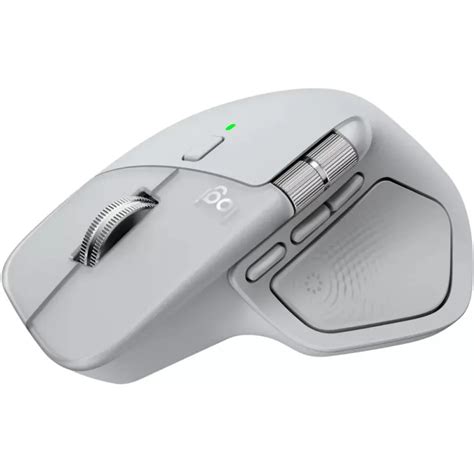
The Mx Master 4 follows the series’ established silhouette: a substantial, contoured body with a pronounced thumb rest and textured control surfaces. The materials feel premium—matte plastics and a firm, slightly soft-touch finish where the palm rests. Buttons are well-integrated, and seams are minimal, which gives the mouse a cohesive, durable appearance suitable for an everyday carry in a laptop bag.
Unlike compact travel mice, this model favors comfort over ultra-portability. It is a full-size mouse, which influences two practical tradeoffs: a more comfortable hand position for long sessions, and slightly more bulk to carry when commuting. For users who prioritize portable lightness, the size may be a consideration.
Ergonomics and comfort
Ergonomics are a headline benefit. The Mx Master 4 is shaped to support the hand in a relaxed, neutral position, reducing pronation and minimizing strain during extended use. The writer noticed a clear difference after switching from a low-profile travel mouse: wrist movement decreased and sustained typing-and-pointing sessions felt less fatiguing.
That said, ergonomics are personal. Left-handed users are out of luck—the mouse is right-handed only. Users with smaller hands should test the contour in person where possible; while many find the thumb rest supportive, others with smaller hands may prefer a more compact model.
Buttons, wheels, and controls
The Mx Master 4 keeps a generous set of controls: the primary left and right clicks, an electromagnetic main scroll wheel that toggles between ratcheted and free-spinning modes, a clickable thumb wheel (useful for horizontal scrolling or timeline scrubbing), a thumb gesture button, and convenient forward/back buttons. Each control feels solid and precise; clicks are tactile and responsive without being noisy.
In practice, the combination of the main wheel and thumb wheel transforms workflows in apps like spreadsheets, IDEs, and video editors. The writer found that the thumb wheel, when mapped to horizontal scroll or brush size, cut repetitive mouse travel and increased efficiency during creative tasks.
Sensor and tracking
Tracking on the Mx Master 4 proved reliable across typical laptop surfaces. It handled smooth desks, soft mouse pads, and many glass surfaces adequately—meaning the sensor is tuned for accuracy and versatility. Pointer acceleration felt predictable, enabling precise cursor placement during design work and rapid movement for long multi-monitor sweeps. For users who switch between macOS and Windows, tracking behavior was consistent and required little adjustment in pointer speed settings.
Discover deals on Laptops & Computers — updated daily.
View Offers →Connectivity and multi-device use
One of the Mx Master family’s strongest features is multi-device connectivity. The Mx Master 4 supports pairing to multiple devices and switching between them via dedicated buttons or software-driven workflows. For laptop users who also use a desktop or tablet, this is a productivity multiplier. The mouse integrates with Logitech’s device ecosystem—allowing features like cross-device clipboard sharing and cursor flow across computers when used with the companion software and compatible hardware.
Both Bluetooth and a USB receiver option are typically supported. The writer found Bluetooth pairing fast and robust for daily laptop use, while the receiver provided a lower-latency option for a permanent desktop pairing.
Battery life and charging
The Mx Master 4 comes with a rechargeable battery and USB-C charging. In actual use, the battery typically lasted many days to multiple weeks depending on intensity—heavy application-heavy workflows and continuous multi-device use shortened the interval, while intermittent laptop-only use stretched it. Short top-ups via USB-C were enough to resume a long day of work, and the convenience of USB-C is appreciated by laptop users who already carry a matching cable or charger.
Software and customization
Logitech’s customization software—often branded as Logi Options+—enables mapping buttons per application, adjusting scroll-wheel behavior, setting gesture controls, and enabling cross-device features. The writer used application-specific mappings for a browser, a code editor, and a video editor; the result was immediate productivity gains. While the software adds value, it is optional: the mouse works well without it, but advanced users will want to install the customization suite to unlock the full potential.
Noise and tactile feedback
Clicks are satisfyingly crisp without being loud. The primary buttons have a firm travel and responsive action; the scroll w…Real-world use cases
- Office productivity: The Mx Master 4 reduces wrist movement during long spreadsheet sessions and speeds navigation across documents via the scroll wheel and horizontal thumb wheel.
- Software development: Programmers benefit from precise cursor control, programmable buttons for common commands (build/run/terminal), and multi-device flow when testing across laptop and test machine.
- Creative work: Designers and video editors can map brush size, timeline scrubbing, and horizontal panning to the thumb controls to reduce repetitive gestures.
- Remote and hybrid work: The multi-device pairing and cross-machine features smooth transitions between a work laptop and a home desktop, eliminating constant re-pairing or multiple peripherals.
- Commuting and travel: The bulkier size makes it less ideal for ultra-light travel kits, but for users who prioritize comfort at both home and in short commute stints, it remains a versatile companion.
Pros & Cons
- Pros:
- Excellent ergonomics for long laptop sessions and desk work
- Rich set of programmable controls that improve productivity
- Reliable multi-device switching and integration with Logitech software features
- Long battery life and convenient USB-C charging
- High-quality materials and precise scroll wheel behavior
- Cons:
- Right-handed only—no left-handed variant
- Full-size dimensions add bulk to a laptop travel kit
- Premium price compared with compact travel mice
- Advanced features require companion software for full customization
How the Mx Master 4 compares
A direct comparison helps frame who should pick the Mx Master 4 versus other popular choices. The table below highlights practical differences relative to two common alternatives used by laptop owners: the previous full-size model in the MX line and a compact travel-oriented mouse.
| Feature | Logitech Mx Master 4 | Logitech Mx Master 3 | Logitech Mx Anywhere 3 |
|---|---|---|---|
| Target user | Desktop and laptop users prioritizing comfort and productivity | Users wanting a proven full-size ergonomic mouse | Mobile professionals who need compact portability |
| Size & portability | Full-size—less portable | Full-size—established form | Compact—designed for travel |
| Ergonomics | Very supportive thumb rest and sculpting | Very supportive—industry benchmark | Comfortable but smaller profile |
| Controls | Main wheel + thumb wheel + gesture button (programmable) | Main wheel + thumb wheel + gesture button (programmable) | Main wheel + fewer extra controls |
| Best for | Long daily use, multi-app workflows, creatives | Similar to above; proven stable experience | Light travel, occasional extended use |
Buying guide: What buyers typically care about
When a laptop user evaluates the Mx Master 4, several recurring considerations come up. The following checklist and guidance will help potential buyers decide whether the Mx Master 4 aligns with their needs.
1. Comfort vs portability
Ask whether the mouse will be used mostly at a desk or carried in a bag regularly. The Mx Master 4 favors comfort: choose it if long sessions and reduced strain matter more than saving pocket space. If travel weight and compactness are top priorities, consider a smaller model.
2. Handedness and grip style
Confirm right-handed use. The sculpted shape favors a palm or relaxed claw grip; fingertip grippers may find it large. If possible, test the contour in a store or borrow from a colleague before purchasing.
Looking for the best Laptops & Computers deals on Amazon?
See Deals →3. Multi-device workflows
If the buyer switches between a laptop, desktop, and tablet throughout the day, multi-device pairing and cross-device features are valuable. Verify that the devices support the same Bluetooth stacks or that a USB receiver is available for a dedicated connection.
4. Application-specific customization
Users in specialized fields—video editing, CAD, design, programming—should explore application-specific mappings. The ability to assign macros, gestures, and wheel behaviors per app can save minutes per task that add up to hours per week.
5. Battery and charging habits
Consider how often charging is acceptable. If the laptop bag already carries a USB-C charger, topping up the mouse occasionally is easy. For users who prefer disposable AA mice or want zero charging management, this is a different tradeoff.
6. Compatibility and software
Logitech’s customization tools run on major desktop platforms; the buyer should confirm compatibility with their laptop’s operating system and whether cloud features or cross-device copy/paste require additional setup. Some features may behave differently across platforms.
7. Price and value
Evaluate the mouse as a long-term investment in comfort and workflow efficiency. Premium mice cost more up front but can reduce fatigue and speed repetitive tasks—factors that are particularly valuable for professionals who spend many hours at a computer.
8. Alternatives to consider
- For a smaller travel mouse: consider compact series models that prioritize portability over sculpted ergonomics.
- For left-handed users: explore manufacturers that offer ambidextrous or left-handed mice.
- For simpler, lower-cost needs: a basic wireless mouse may suffice if programmability and advanced wheels are unnecessary.
Setup tips and day-one tweaks
To get the most out of the Mx Master 4, the writer recommends these quick adjustments after unboxing:
- Install the official customization software to set up per-app button mappings and fine-tune scroll behavior.
- Adjust pointer speed within the OS rather than relying on the default—small changes can improve precision.
- Map the thumb wheel to a function that reduces repetitive mouse travel (e.g., horizontal pan or timeline scrub in creative apps).
- Enable multi-device flow only after checking network and security settings on both machines; some network configurations block cross-device features.
Limitations and considerations
While the Mx Master 4 excels in comfort and features, it is not the perfect tool for every scenario. Its size makes it a less-than-ideal primary travel mouse for those carrying only a minimalist kit. Gamers seeking ultra-low latency and ultra-high polling rates might prefer purpose-built gaming mice. Left-handed users are excluded by design. Finally, some advanced functions rely on companion software, which means the full feature set is dependent on running vendor software.
Conclusion
After switching to the Logitech Mx Master 4, the writer’s experience underscores that this mouse is a strong fit for laptop users who prioritize comfort, advanced controls, and multi-device workflows. It provides tangible workflow improvements in office productivity, creative applications, and multi-computer setups—especially for users who spend extended hours working at a desk. The tradeoffs are clear: it adds bulk to a laptop bag, is right-handed only, and carries a premium price. For those who value ergonomics and productivity over minimal portability, the Mx Master 4 is a compelling choice that reliably enhances day-to-day laptop work without gimmicks—just thoughtfully executed features that deliver practical gains.