The Ultimate Setup Guide for Your Rog Chakram
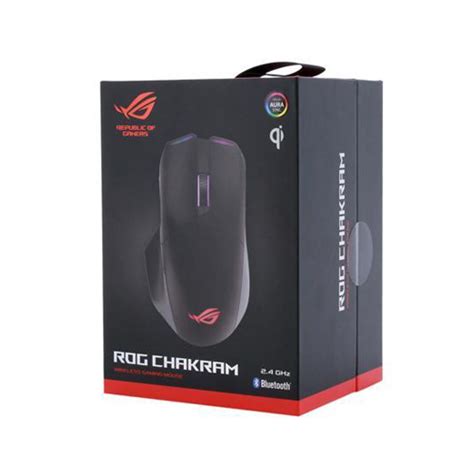
The Rog Chakram is a distinctive entry in the gaming peripherals space, blending a high-performance mouse with a built‑in joystick and extensive customization. This guide walks through everything a new owner needs to know: what the mouse offers, how to set it up for different use cases, configuration tips that matter in real play, a balanced pros & cons list, a short comparison against mainstream alternatives, and a practical buying guide so buyers know what to prioritize. The tone is objective and informative; the goal is to help readers get the most from their Rog Chakram whether they play competitively, create content, or use it for productivity shortcuts.
Introduction to the Rog Chakram
The Rog Chakram stands out because it combines two input philosophies: the precision of a modern optical mouse and the analog flexibility of a small joystick. For users who want one device to handle both rapid aiming and analog control (for vehicle movement, in‑game camera control, or creative software shortcuts), the Chakram is an intriguing option. It typically ships with a modular approach — a removable joystick module, wireless and wired connectivity modes, RGB lighting, and configurable buttons — letting owners shape the device to their preferred workflow.
This article assumes the reader has just unboxed a Rog Chakram (or is considering one) and wants step‑by‑step advice to get it ready for daily use and optimized for specific tasks and genres.
Detailed product review and analysis
Design and ergonomics
The Chakram usually follows an ergonomic right‑hand shape with a thumb area that houses the joystick. The comfort profile favors palm and claw grips, and many users report the chassis is well balanced for extended sessions. The removable joystick can be swapped for a blank cap or alternative module, which helps users who prefer a traditional thumb rest.
Joystick and input versatility
What sets the Chakram apart is the integrated joystick: it can act as a digital hat (mapped to discrete inputs) or as an analog axis (for finer control), depending on configuration. This opens real possibilities beyond gaming — for example, fine camera nudges in flight sims, analog steering in racing titles, or quick timeline scrubbing in video editing. The flexibility to remap the joystick in software increases its usefulness for productivity as well as play.
Connectivity and performance
The mouse supports multiple connectivity modes so users can prioritize low latency (wired), convenience (wireless dongle), or battery conservation (some variants include Bluetooth). The sensor and polling rate are designed to meet competitive standards, delivering consistent cursor movement and tracking across surfaces. In practice, setup and driver configuration influence perceived responsiveness more than raw sensor numbers for many users.
Customization and software
Rog Chakram is configured through the manufacturer's software, which provides DPI stages, button remapping, joystick behavior, RGB controls, and onboard profile storage. Owners should take time to explore profiles and macros if they plan to reuse settings across multiple systems; onboard memory avoids reconfiguration on every machine.
Build quality and maintenance
Construction often combines textured plastics with accent metal or glossy finish elements. Switches and the joystick mechanism are mechanical, so periodic cleaning and cautious handling around the removable parts extend service life. A soft brush and compressed air are usually sufficient for routine maintenance.
Battery life and power
When used wirelessly, battery life depends heavily on lighting, polling rate, and wireless mode. Users who prioritize minimal latency and long sessions frequently opt for wired mode during intensive play, reserving wireless for mobility. The mouse commonly supports fast charging so a short top‑up between sessions can be enough for several hours of use.
Step‑by‑step setup guide
1. Unpack and inspect
Remove protective films and confirm accessories are present (USB cable, wireless dongle if included, spare joystick caps). Inspect the mouse feet and connector for shipping damage. Keep packaging if there is a need to return or transfer the unit.
2. Initial charge and cable connection
If the unit shipped with a partially discharged battery, connect it via the supplied cable and allow a short charge before heavy use. For a first‑time setup, plug the cable into the computer and let the system recognize the hardware. Using the wired connection during initial configuration avoids issues with drivers and firmware updates.
Looking for the best Electronics deals on Amazon?
View Offers →3. Install the configuration software
Install the manufacturer’s configuration suite on the target computer. This software is the gateway to DPI stages, polling rate options, joystick modes, macro recording, RGB control, and firmware updates. Launch the program and grant any system permissions it requests so it can apply system‑level button remaps or low‑level settings.
4. Update firmware
Check for firmware updates in the software. New firmware can fix edge cases, improve joystick behavior, or increase compatibility. Follow on‑screen instructions — do not disconnect the device during a firmware flash. If multiple computers are used, keep one updated and export profiles to onboard memory.
5. Pair wireless dongle or Bluetooth
For wireless mode, plug in the USB receiver into a rear I/O port to minimize interference; a front port or a hub can introduce latency. If using Bluetooth, enter pairing mode on both the mouse and host device and confirm a stable connection. Test latency-sensitive inputs in a simple environment (desktop pointer movement and a basic game) to choose the optimal mode.
6. Configure DPI and polling
Set DPI stages with meaningful increments (for example, a low DPI for precise aiming, a medium for mixed play, and a high DPI for high‑resolution displays). Adjust the polling rate according to preference; lower rates save power while higher rates reduce input lag in some scenarios. Save these stages to onboard memory for consistent behavior across machines.
7. Map the joystick and buttons
Decide the joystick role: in games where analog movement matters (flight, racing), enable analog mode with sensitivity …8. Fine‑tune RGB and power profiles
Adjust lighting both for aesthetics and battery preservation. Many owners set a muted color profile during long sessions and prefer brighter RGB for broadcast or streaming. Set power profiles that dim lighting or reduce polling when the system is idle to lengthen battery life.
9. Save profiles and export backups
Save commonly used profiles (e.g., FPS, Flight Sim, Productivity) to the mouse’s internal memory and export backups. When moving between computers, import the preferred profile and set the mouse to load it automatically to avoid repeated setup.
10. Maintenance routine
Periodically remove the joystick cap to clear debris, check the feet for wear, and clean the sensor window. Avoid liquids; if spills occur, power down and follow manufacturer guidance.
Real‑world use cases and what buyers care about
Buyers choose the Chakram for several practical reasons:
- Hybrid gamers: Players who switch between FPS and vehicle‑based games benefit from the switchable joystick for analog control without carrying a separate controller.
- Content creators: Editors and designers map the joystick to timeline scrubbing or zoom/pan controls for a tactile shortcut that complements keyboard modifiers.
- Productivity users: Professionals who use complex shortcuts across multiple apps can assign multi‑step macros to thumb controls to speed repetitive workflows.
- Streamers: On‑the‑fly scene switching and audio adjustments mapped to the joystick or buttons provide an ergonomic, quick access layer during broadcasts.
Typical buyer concerns include battery life under RGB use, durability of the joystick mechanism, the quality of the sensor for competitive play, and the maturity of configuration software (stability and export features). Addressing these during setup — keeping firmware current, saving profiles onboard, and configuring power profiles — directly improves the ownership experience.
Discover deals on Electronics — updated daily.
See Deals →Pros & Cons
Pros
- Unique integrated joystick that provides analog and digital control options.
- Flexible connectivity modes (wired/wireless) to suit latency and mobility needs.
- Highly customizable via software: button remapping, macro recording, and RGB tuning.
- Onboard memory for storing profiles so settings persist across systems.
- Ergonomic design suitable for palm and claw grip users during long sessions.
Cons
- The added joystick increases complexity and may be unnecessary for pure FPS players.
- Mechanical components (joystick module) can require occasional maintenance and careful handling.
- Wireless battery life varies with RGB and polling settings; heavy customization can reduce run time.
- Price can be higher than single‑purpose mice with comparable sensors but without joystick features.
Comparison: Rog Chakram vs. Mainstream Alternatives
| Feature | Rog Chakram | Logitech G502 (example) | Razer Basilisk (example) |
|---|---|---|---|
| Joystick | Yes — integrated, removable, analog/digital options | No — focus on buttons and weight tuning | No — focus on paddle and scroll wheel tuning |
| Wireless | Typically supports wired and wireless modes | Wired and some wireless variants available | Wired and wireless models available |
| Programmable buttons | Multiple programmable buttons and macro support | High button count with advanced remapping | Several programmable inputs with software macros |
| Onboard memory | Yes — store profiles on the device | Yes — onboard profile storage | Yes — save profiles onboard |
| Best for | Hybrid players, sim and productivity users who want analog control | Users wanting many programmable buttons and weight tuning | Users wanting ergonomic thumb controls and customizable wheel resistance |
Buying guide: what to prioritize
1. Decide whether the joystick is useful
If the buyer frequently plays flight, racing, or simulation titles or wants analog control for creative tools, the integrated joystick is a meaningful advantage. For pure competitive FPS players who value minimal latency and simplicity, a conventional lightweight mouse might be preferable.
2. Ergonomics and grip style
Confirm the mouse shape matches the intended grip (palm, claw, fingertip). If possible, handle a similar shape in a store. Comfort over extended sessions matters more than marketing numbers.
3. Software and ecosystem
Software maturity matters: users should look for stable configuration suites, reliable profile export/import, and frequent firmware updates. A good software ecosystem is what turns a capable mouse into a versatile tool.
4. Sensor and latency
Look for a reliable optical sensor and configurable DPI stages. Buyers who play competitively will test wired vs wireless latency in their preferred titles before committing to a mode for ranked play.
5. Battery life and charging
Consider how long the mouse lasts in wireless mode with the lighting and polling settings a buyer expects to use. Fast charge capability and usable wired mode while charging are practical considerations.
6. Durability and maintenance
Because of the mechanical joystick, check warranty terms and read about replacement parts or repairability. Routine maintenance instructions should be easy to follow and not require disassembly beyond removing a cap.
7. Price and alternatives
Balance the Chakram’s unique input options against what competitors offer. If the buyer is price‑sensitive but excited by the joystick concept, consider core variants or other controllers that achieve similar functions at different price points.
Final tips and best practices
- Start with conservative DPI and sensitivity changes and adjust in small increments to build muscle memory.
- Use separate profiles for different genres and name them clearly in software so swapping is quick.
- Disable RGB or lower its brightness during long wireless sessions to extend battery life.
- Test joystick assignments in a practice environment before using them in ranked or competitive matches.
- Keep firmware and software up to date, and export a backup of preferred profiles to a safe location.
Conclusion
The Rog Chakram is a compelling option for users who want a single peripheral that expands beyond traditional mouse input. Its integrated joystick unlocks practical workflows for sim, creation, and productivity while retaining the responsiveness expected of a high‑quality gaming mouse. Proper setup — from firmware updates and software configuration to profile management and maintenance — makes the difference between a novelty and a daily driver. Buyers should weigh the value of the joystick against their primary use case, prioritize ergonomic fit and software stability, and follow the simple setup and maintenance steps outlined here to get the most from the device.